
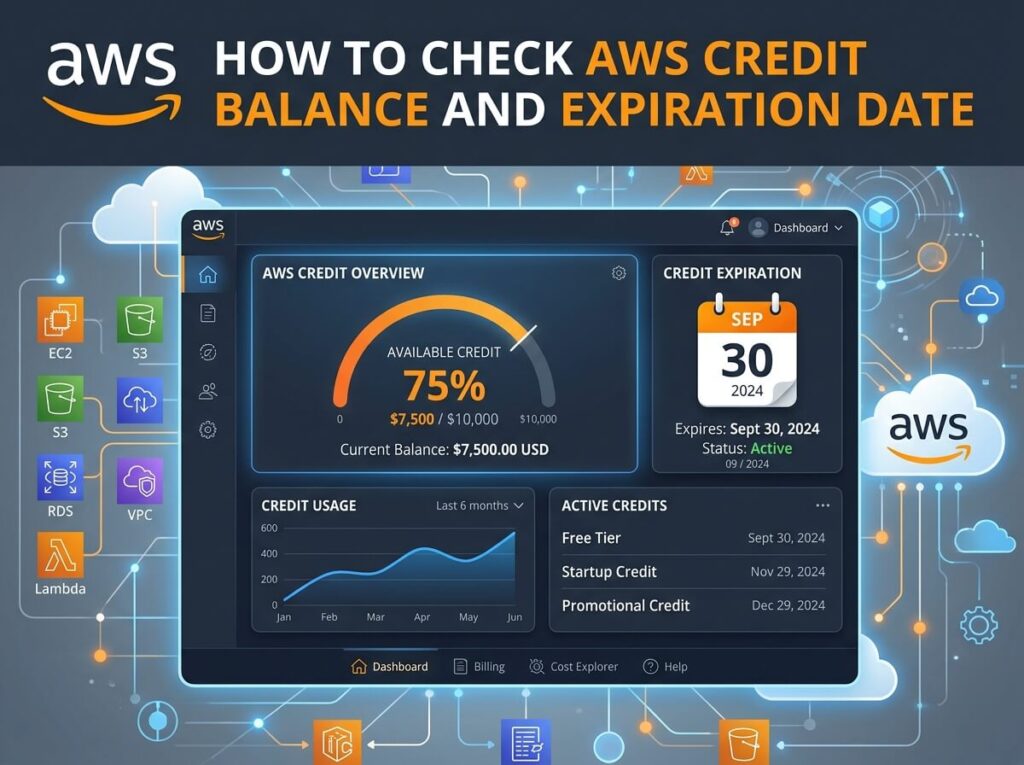
To check your AWS credit balance and expiration date, log in to the AWS Management Console, open the Billing and Cost Management Dashboard, and select “Credits” from the left menu. This page shows each credit’s remaining balance, expiration date, and eligible services. You can also automate tracking with the AWS Billing API or budget alerts.
AWS credits can save you hundreds—sometimes thousands—of dollars on your cloud bill. But those savings only help if you know how much credit you have left and when it runs out. Miss an expiration date, and you might wake up to a surprise invoice that eats straight into your budget.
This guide walks you through three reliable ways to track your AWS credits: the Management Console, the Billing API, and automated billing alerts. Whether you’re a startup founder stretching your runway or a developer managing a side project, you’ll learn exactly where to look and how to stay ahead of expiring credits.
What Are AWS Credits and How Do They Work?
AWS credits are promotional balances applied against your monthly bill. When AWS calculates your charges, it deducts eligible credits before billing your payment method. In short, credits reduce what you actually pay.
There are a few common types:
- Promotional credits: Handed out through AWS events, webinars, or marketing campaigns.
- Educational credits: Provided through programs like AWS Academy and AWS Educate for students and educators.
- Startup credits: Distributed via programs like AWS Activate, which can offer thousands of dollars in credits to eligible startups.
Each credit has three key attributes: a balance, an expiration date, and a set of eligible services. Some credits apply to almost any AWS service, while others only cover specific ones like EC2 or S3. AWS automatically applies credits to matching usage, starting with the credits that expire soonest.
Why Does Monitoring Your AWS Credits Matter?
Tracking your credits is about more than curiosity—it directly affects your budget.
Avoid unexpected charges. Once your credits expire or run dry, AWS bills your regular payment method at standard rates. If you’re not watching, a project you assumed was “free” can start generating real costs overnight.
Plan your resource usage. Knowing your remaining balance helps you time bigger workloads. If you have $2,000 in credits expiring in two months, you might schedule that data migration or testing sprint sooner rather than later.
Optimize your cloud spending. Credits give you room to experiment. When you understand what you have and when it expires, you can maximize return on investment and avoid leaving value on the table.
Method 1: How Do You Check Credits in the AWS Management Console?
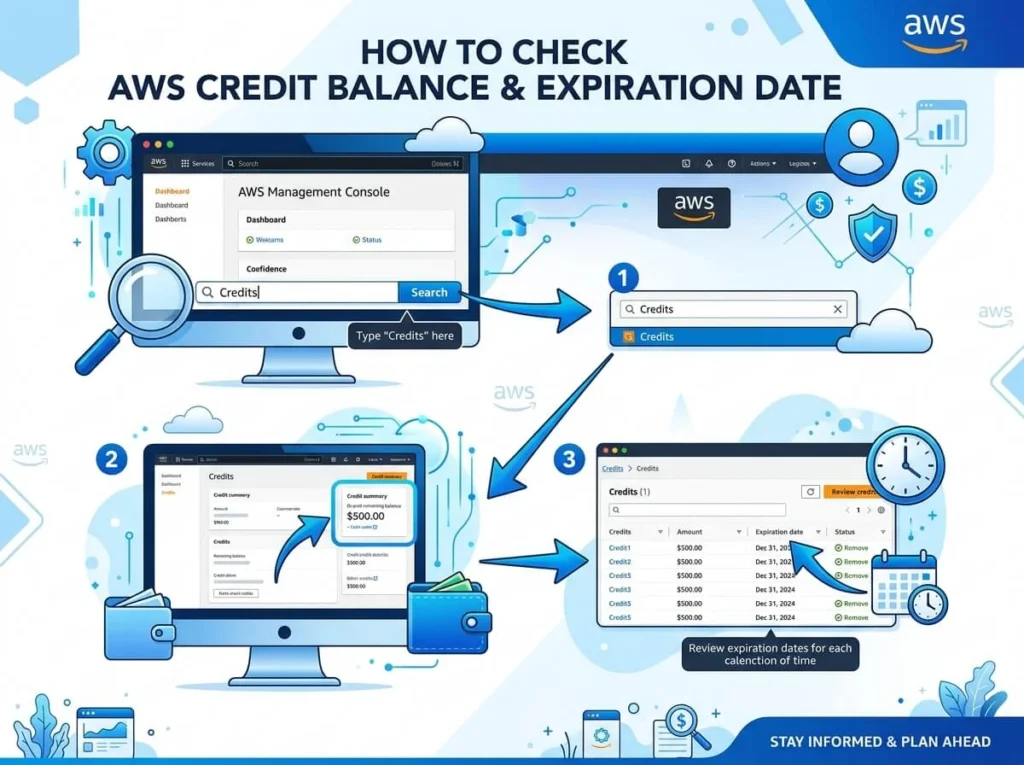
The console is the easiest option for most people. Here’s how to find your credits:
- Sign in to the AWS Management Console using your root or IAM account with billing permissions.
- In the top navigation bar, click your account name, then select Billing and Cost Management.
- In the left-hand menu, choose Credits.
- Review the table displayed. You’ll see each credit listed with its details.
The Credits page shows several columns worth understanding:
- Credit name or ID: Identifies the specific credit or promotion.
- Amount used: How much of the credit you’ve already consumed.
- Amount remaining: Your current available balance.
- Expiration date: The date the credit becomes invalid.
- Applicable products: The AWS services the credit can be applied to.
If you don’t see the Credits option, your IAM user likely lacks billing access. Ask your account administrator to grant the aws-portal:ViewBilling permission.
Method 2: How Do You Retrieve Credit Data Using the AWS Billing API?
If you manage multiple accounts or want automated reporting, the programmatic route saves time. AWS credit information can be accessed through the Cost Explorer and Billing APIs.
Here’s a simple example using the AWS CLI to pull cost and usage data, which helps you monitor how quickly credits are being consumed:
aws ce get-cost-and-usage \
  --time-period Start=2024-01-01,End=2024-02-01 \
  --granularity MONTHLY \
  --metrics "UnblendedCost" \
  --filter '{"Dimensions":{"Key":"RECORD_TYPE","Values":["Credit"]}}'
You can also use the AWS SDK for Python (Boto3) to build custom monitoring scripts:
import boto3

client = boto3.client('ce')

response = client.get_cost_and_usage(
    TimePeriod={'Start': '2024-01-01', 'End': '2024-02-01'},
    Granularity='MONTHLY',
    Metrics=['UnblendedCost'],
    Filter={
        'Dimensions': {
            'Key': 'RECORD_TYPE',
            'Values': ['Credit']
        }
    }
)

print(response['ResultsByTime'])
The main benefit here is automation. You can run these scripts on a schedule, log the results, and even feed the data into dashboards or Slack notifications. For teams managing several AWS accounts, this beats logging into each console manually.
Method 3: How Do You Set Up Billing Alerts for AWS Credits?
Billing alerts won’t track credit balances directly, but they will warn you the moment your spending crosses a threshold—usually a sign that your credits have run out. Setting these up is smart insurance.
Here’s how to configure a budget alert:
- Open the Billing and Cost Management Dashboard.
- Select Budgets from the left menu, then click Create budget.
- Choose the Cost budget template.
- Set your budgeted amount (for example, $1 to catch the first sign of real charges).
- Add an alert threshold, such as 80% of your budget.
- Enter the email address where you want to receive notifications.
- Review and create the budget.
Once configured, AWS emails you when your actual or forecasted spending hits your threshold. Pair this with a calendar reminder for each credit’s expiration date, and you’ll rarely be caught off guard.
Staying Ahead of Your AWS Credits
Keeping tabs on your AWS credits is one of the simplest ways to protect your cloud budget. The Management Console gives you a quick visual snapshot, the Billing API supports automated and multi-account monitoring, and budget alerts act as a safety net when balances run low.
Make it a habit to check your Credits page at the start of each month. Note the expiration dates, plan heavy workloads around your available balance, and set up at least one billing alert today. A few minutes of setup now can save you from an unwelcome invoice later.
Frequently Asked Questions
Where do I find AWS credits in the console?
Sign in to the AWS Management Console, click your account name in the top navigation, choose Billing and Cost Management, then select Credits from the left-hand menu. The page lists each credit’s balance, expiration date, and eligible services.
Do AWS credits expire?
Yes. Every AWS credit has an expiration date, which you can view on the Credits page in the Billing Dashboard. Once a credit expires, any unused balance is lost and AWS bills your standard payment method for future usage.
Why can’t I see the Credits section in my account?
You most likely don’t have billing permissions. AWS credits are only visible to root users or IAM users granted billing access. Ask your account administrator to enable the aws-portal:ViewBilling permission for your user.
Can I check my AWS credit balance automatically?
Yes. You can use the AWS Billing and Cost Explorer APIs, along with the AWS CLI or SDKs like Boto3, to retrieve cost and credit-related data programmatically. This is ideal for teams managing multiple accounts or building automated dashboards.
How are AWS credits applied to my bill?
AWS automatically applies eligible credits to your usage before charging your payment method. Credits that expire soonest are used first, and each credit only applies to the services listed as eligible under its terms.
You can also visit : What Are AWS Credits and How Do They Work?