
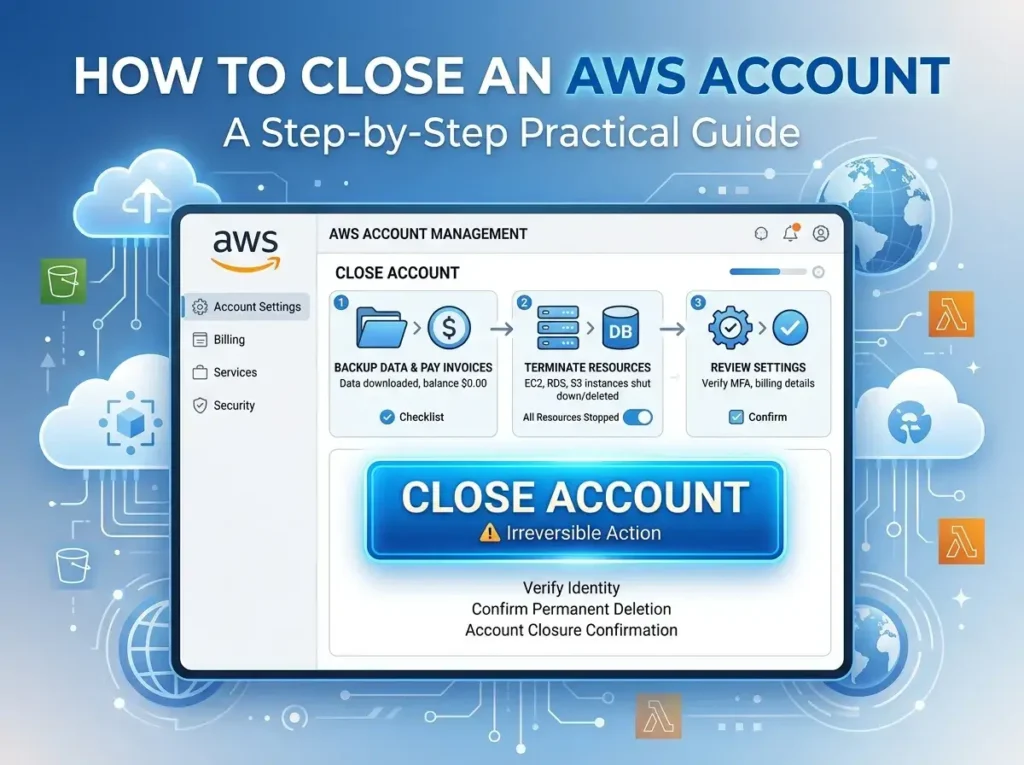
To close an AWS account, sign in as the root user, settle any outstanding charges, back up important data, terminate active resources, and then navigate to Account Settings to confirm closure. AWS retains the account for 90 days before permanent deletion, so there’s a short window to reverse the decision if needed.
A project wraps up. A company migrates to another cloud provider. Or maybe a handful of forgotten EC2 instances have been quietly generating charges for months, and someone finally notices the bill. Whatever the reason, there comes a point where an AWS account has simply outlived its usefulness.
Closing an AWS account isn’t as simple as clicking “delete,” though. AWS requires you to settle any prerequisites, and there’s a waiting period before everything is permanently erased. Skip a step, and you could end up with surprise charges or lost data you actually needed.
This guide walks through everything involved in closing an AWS account: what to check beforehand, the exact steps to follow, and what happens once you’ve confirmed the closure. It’s built for individuals, developers, and businesses who want to fully close their account, not just pause billing or scale down usage.
Why Close an AWS Account?
There are a handful of common reasons people close their AWS accounts entirely:
- Avoiding unnecessary billing. If an account is no longer in active use, closing it removes the risk of forgotten resources generating charges.
- Consolidating multiple accounts. Businesses that end up with several AWS accounts (often from different teams or acquisitions) may close redundant ones to simplify management.
- Business closure or pivot. If a company shuts down or moves away from AWS entirely, closing the account is the final step in that transition.
- Switching cloud providers. Some organizations migrate to Google Cloud, Azure, or another provider and no longer need their AWS presence.
It’s worth noting the difference between closing an account and simply stopping or terminating individual services. Turning off an EC2 instance or deleting an S3 bucket reduces your bill, but it doesn’t close the account itself. Closing the account is a permanent, account-wide action that removes access to everything associated with it, including services you may have forgotten were still running.
Before You Close: Important Things to Check
Rushing into account closure can create more problems than it solves. Here’s what to verify first.
Do you have any outstanding charges?
AWS requires any unpaid balance to be settled before an account can be closed. If you have a pending invoice, pay it first. Otherwise, the closure process will stall.
Have you backed up your data?
This is the most important step, and the one most people underestimate. Closing an AWS account results in permanent data loss. That includes S3 buckets, EC2 instances, RDS databases, and anything else stored within the account. Once the account is deleted, there’s no recovering that data. Export or back up anything critical before moving forward.
Are there active resources still running?
Check for any services still in use, running EC2 instances, active load balancers, or provisioned databases. Terminate everything you don’t need. Lingering resources can complicate the closure process and, in some cases, continue generating charges until they’re fully removed.
Is your account part of an AWS Organization?
Member accounts within an AWS Organization follow a different closure process than standalone accounts. If your account is linked to an organization, you’ll need to remove it from the organization first, or have the organization’s management account initiate the closure.
Do you have active Reserved Instances or subscriptions?
Reserved Instances and other subscriptions aren’t refunded when you close an account. Review any active commitments beforehand so you’re not paying for something you can no longer use.
How to Close Your AWS Account: Step-by-Step
Once you’ve checked off everything above, here’s how to actually close the account.
Step 1: Sign in as the root user
Only the root user can close an AWS account. IAM users, even those with administrator permissions, don’t have this capability. Log in using the email address and password associated with the account’s root user.
Step 2: Go to account settings
From the account dropdown menu in the top-right corner of the AWS Management Console, select “Account.” This takes you to the account settings page, where you’ll find billing information, contact details, and account preferences.
Step 3: Scroll to “Close Account”
Near the bottom of the Account page, you’ll find a section labeled “Close Account.” This is where the closure process begins.
Step 4: Confirm closure
AWS presents a series of warnings before finalizing the closure, reminding you that the action is irreversible and that all data will eventually be deleted. Read through these carefully, check the confirmation boxes, and submit your request.
The closure request itself typically processes within a few minutes, and AWS sends a confirmation email once it’s complete. Keep that email for your records, particularly if you need proof of closure for billing or compliance purposes.
What Happens After You Close Your AWS Account
Closing an account doesn’t mean everything disappears immediately. AWS enforces a 90-day suspension period during which the account can still be reopened if you change your mind. During this window, you won’t be able to access most services, but the account itself remains in a recoverable state.
After the 90 days pass, the account and all associated data are permanently deleted. There’s no way to recover anything past this point, which is why backing up important data beforehand is so critical.
One thing to keep in mind: final billing statements are still issued even after closure. If there were any charges incurred before the account was closed, you’re responsible for paying them.
Common Issues When Closing an AWS Account
A few roadblocks come up repeatedly when people try to close their accounts:
- Unpaid balances. AWS won’t process a closure request if there’s an outstanding balance. Settle any charges first.
- Forgotten active resources. It’s easy to overlook a small resource, like a lingering EBS volume, that’s still technically active. Do a thorough audit before starting the closure process.
- Organization membership. If your account belongs to an AWS Organization, the standard closure steps won’t work. You’ll need to follow the organization-specific process instead.
If you run into an issue that isn’t resolved by the steps above, AWS Support can help troubleshoot account-specific problems.
Wrapping Up: Closing Your AWS Account the Right Way
Closing an AWS account comes down to four things: preparing properly, backing up your data, terminating active resources, and confirming the closure as the root user. Skipping any of these steps can lead to lost data or unexpected charges down the line.
Before you finalize anything, double-check for active resources you might have missed. It’s a small step that can save you from an unpleasant surprise on your final invoice.
For more detail on account-specific edge cases, AWS’s official documentation is worth reviewing. And if you manage cloud infrastructure regularly, it’s worth bookmarking a resource like this one for the next time you need a refresher.
Frequently Asked Questions
Can I close an AWS account with an outstanding balance?
No. AWS requires all outstanding charges to be paid in full before it will process an account closure request.
Will I lose my data when I close my AWS account?
Yes. Closing an AWS account results in permanent data loss, including S3 buckets, EC2 instances, and RDS databases. Back up anything important before starting the closure process.
How long does it take to close an AWS account?
The closure request itself processes within minutes, but AWS enforces a 90-day suspension period before the account and its data are permanently deleted.
Can I reopen an AWS account after closing it?
Yes, but only within the 90-day suspension period. After that window, the account is permanently deleted and cannot be recovered.
Can I close a member account in an AWS Organization the same way?
No. Member accounts within an AWS Organization follow a different closure process than standalone accounts. You’ll need to remove the account from the organization first or have the management account handle the closure.
You can also visit : AWS vCPU Limits Explained: 8, 32, 64, 128, 256, and 512 vCPU