AWS Explained: Your Guide to Amazon’s Cloud Computing Power
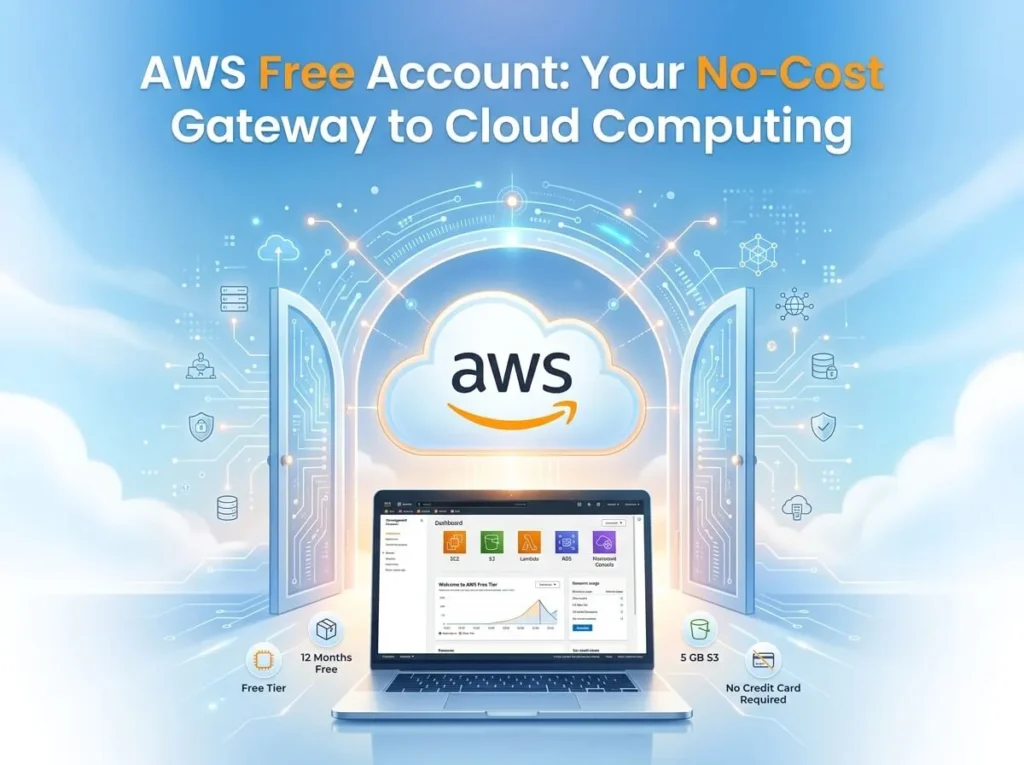
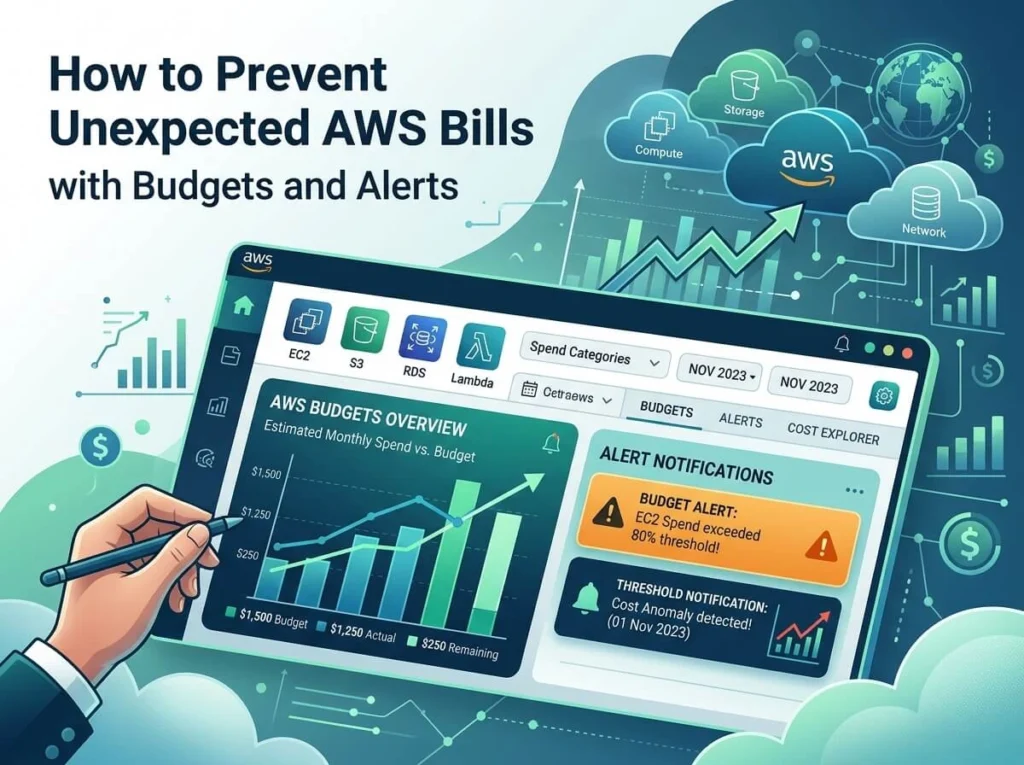
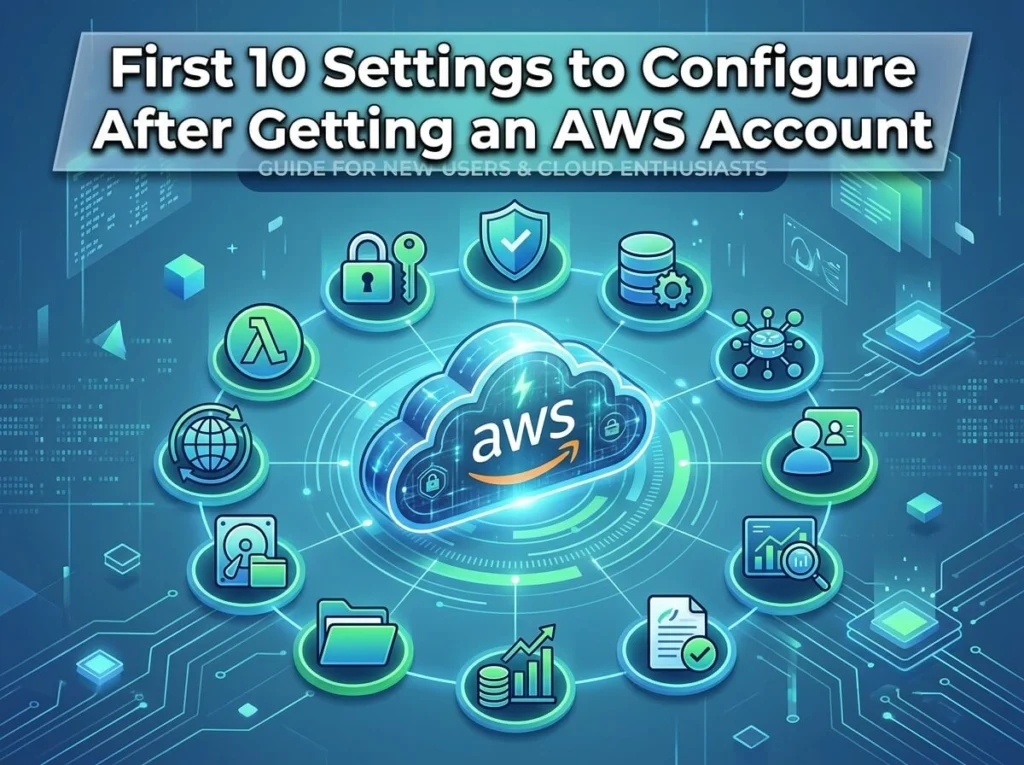
Amazon Web Services (AWS) is Amazon’s cloud computing platform, providing on-demand access to computing power, storage, databases, and 200+ other IT services over the internet. AWS holds roughly 31% of the global cloud infrastructure market, making it the world’s leading cloud provider, ahead of Microsoft Azure and Google Cloud. Roughly one in three dollars spent on cloud infrastructure worldwide goes to Amazon Web Services. That single statistic explains why AWS has become the backbone of the modern internet, quietly powering the apps, websites, and streaming services that billions of people rely on every day. Businesses of every size are migrating to the cloud to cut costs, scale operations faster, and stay ahead of competitors who’ve already made the leap. Maintaining physical servers is expensive, slow to scale, and increasingly unnecessary when platforms like AWS can deliver the same capabilities on demand. This guide is for business owners weighing a cloud migration, IT professionals looking to sharpen their AWS knowledge, and anyone curious about the infrastructure that keeps services like Netflix and Airbnb running smoothly. By the end, you’ll understand what AWS actually is, its most important services, the benefits it offers, and how to start using it yourself. What Is Amazon Web Services (AWS)? Amazon Web Services is Amazon’s cloud computing platform. It gives businesses on-demand access to computing power, storage, and other IT resources over the internet, eliminating the need to own and maintain physical hardware. AWS launched in 2006 with a handful of simple storage and compute services. Since then, it has expanded into a catalog of more than 200 fully featured services, spanning everything from artificial intelligence to satellite data processing. This growth has positioned AWS as the default choice for companies looking to build, run, and scale digital products without the overhead of traditional data centers. One of AWS’s biggest draws is its pay-as-you-go pricing model. Rather than investing heavily in servers and infrastructure upfront, businesses pay only for the resources they actually use. This structure appeals equally to scrappy startups testing an idea and large enterprises running mission-critical workloads, since both can adjust spending based on real demand instead of guesswork. Core AWS Services You Should Know AWS’s service catalog can feel overwhelming at first glance, but most businesses rely on a core set of tools. Here’s a breakdown by category: Category Service Primary Use Case Compute EC2 Virtual servers for running applications Compute Lambda Serverless computing that runs code without managing servers Storage S3 Object storage for files, backups, and static websites Storage EBS Block storage for use with EC2 instances Databases RDS Managed relational databases Databases DynamoDB Fully managed NoSQL database Networking VPC Isolated virtual network for AWS resources Networking Route 53 Domain name system (DNS) and traffic routing Understanding these core services gives you a practical starting point. Most AWS projects, from hosting a simple website to running complex data pipelines, are built using some combination of the tools above. What Are the Key Benefits of Using AWS? Scalability AWS lets businesses scale computing resources up or down based on real-time demand. A retail site can add server capacity during a holiday sales spike, then scale back down once traffic normalizes, without buying and installing new hardware. Cost-Efficiency Because AWS operates on a pay-as-you-go model, businesses avoid the large upfront costs of building physical infrastructure. Resources can be adjusted continuously, so spending stays aligned with actual usage. Global Reach AWS operates data centers across multiple geographic regions, allowing businesses to serve customers with low latency and high availability, regardless of where those customers are located. Security and Compliance AWS maintains compliance certifications for standards including HIPAA and GDPR, and provides built-in security tools like identity and access management, encryption, and network monitoring. This makes it a viable option even for industries with strict regulatory requirements, such as healthcare and finance. Choose AWS if predictable global performance and enterprise-grade security matter more to your business than the simplicity of a smaller, single-region provider. Real-World Use Cases for AWS Startups AWS allows startups to prototype and launch products quickly without investing in physical infrastructure. A small team can spin up servers, databases, and storage in minutes, then scale as the user base grows. Enterprise Large organizations use AWS for advanced data analytics and machine learning. Amazon SageMaker, for example, gives enterprise teams the tools to build, train, and deploy machine learning models without managing the underlying infrastructure. Media and Entertainment Netflix runs its streaming infrastructure on AWS, relying on its global network to deliver content reliably to millions of viewers simultaneously. This use case illustrates AWS’s ability to handle massive scale and unpredictable demand without service disruption. What Common Challenges Come with Using AWS, and How Can You Solve Them? Despite its advantages, AWS adoption comes with real challenges. Cost management can spiral if resources aren’t monitored closely, since the pay-as-you-go model makes it easy to underestimate cumulative spending. AWS Cost Explorer helps address this by giving businesses visibility into usage patterns and spending trends over time. Security misconfigurations remain one of the most common causes of cloud data breaches. The AWS Well-Architected Framework provides best practices for structuring secure, reliable, and efficient cloud environments. The learning curve for beginners can be steep given the sheer number of available services. AWS Training and Certification programs offer structured, beginner-friendly paths for building cloud skills at a manageable pace. How Do You Get Started with AWS? Getting started with AWS doesn’t require deep technical expertise. Follow these steps: Create a free tier account. AWS Free Tier gives new users access to a range of services, including limited usage of EC2, S3, and Lambda, at no cost for the first 12 months. Explore the AWS Management Console. This is the central dashboard where you can launch, monitor, and manage AWS services. Start with a small project. Hosting a static website on S3 is a common first project, since it’s low-risk and introduces core AWS concepts like storage and access permissions. Beginner-friendly resources like AWS Skill Builder
AWS Explained: Your Guide to Amazon’s Cloud Computing Power Read More »