
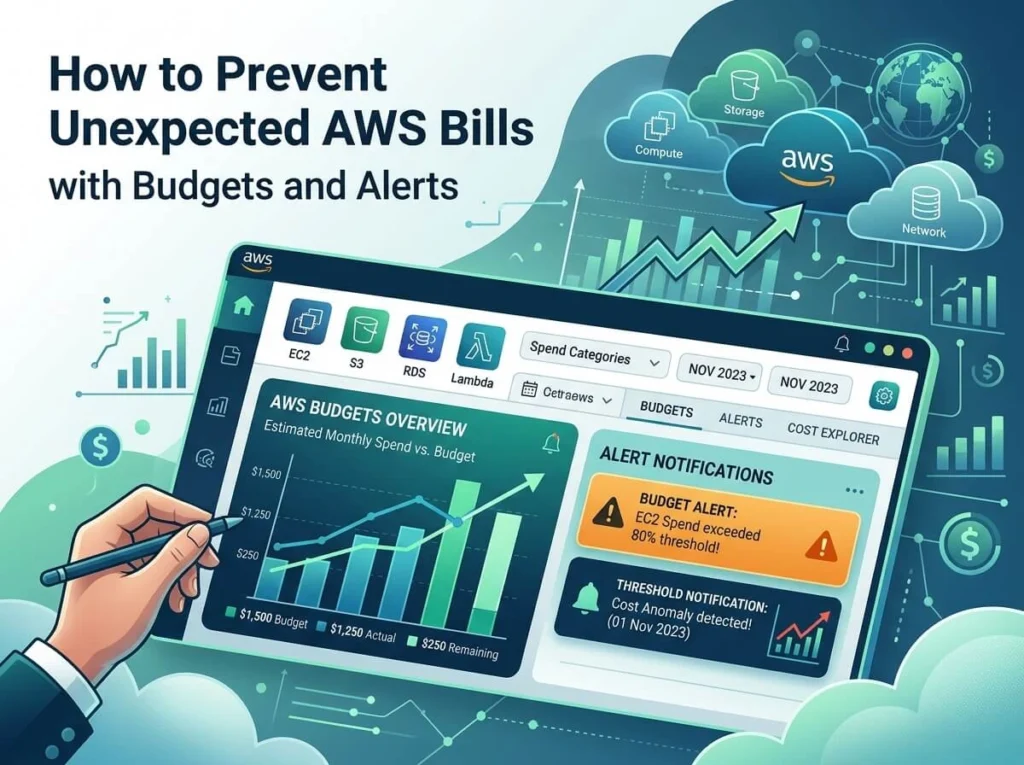
How to prevent unexpected AWS bills with budgets and alerts
Unexpected AWS bills happen when cloud usage scales faster than visibility. Using AWS Budgets, CloudWatch alarms, and Cost Explorer together, teams can set spending thresholds, receive real-time alerts, and catch runaway costs before they become a problem. Few things shake an engineering team’s confidence like opening an AWS bill that’s three times higher than expected. A forgotten EC2 instance left running, an S3 bucket accumulating data unnoticed, a Lambda function firing in an infinite loop—any one of these can silently inflate costs over days or weeks. By the time the invoice arrives, the damage is done. The good news? AWS provides a solid set of native tools to help you stay ahead of your spending. When configured correctly, AWS Budgets, CloudWatch billing alarms, and Cost Explorer give you the visibility and early warning systems needed to stop surprises before they start. This guide walks you through each tool, how to set them up, and how to combine them into a reliable cost-control strategy. Why do unexpected AWS bills happen in the first place? AWS operates on a pay-as-you-go model. That flexibility is one of its greatest strengths—but it also means there’s no hard stop when your usage spikes. Resources scale up automatically, and unless you’re actively watching, costs can climb without any obvious trigger. Common culprits include: Idle or forgotten resources: EC2 instances, RDS databases, and Elastic IPs that no one remembers to terminate Data transfer charges: Moving data between AWS regions or out to the internet carries costs that catch many teams off guard Auto-scaling events: Traffic spikes trigger scaling policies, which is exactly what they’re supposed to do—but the cost implications aren’t always anticipated Third-party integrations: Some AWS Marketplace services bill independently and don’t appear where you’d expect them The fix isn’t to avoid these services. It’s to build a system that tells you when something’s off, fast enough to act on it. How does AWS Budgets work, and how should you configure it? AWS Budgets is the most direct tool for setting spending boundaries. It lets you define a budget—based on cost, usage, or reservation coverage—and then receive alerts when you approach or exceed that threshold. Setting up your first AWS Budget To get started, navigate to AWS Billing and Cost Management > Budgets > Create a budget. AWS offers a few templates for common scenarios, but configuring a custom budget gives you more control. Key decisions to make when setting up a budget: Budget type: Choose “Cost” for a straightforward monthly spend cap, or “Usage” if you want to track a specific service’s consumption (like EC2 hours) Budget amount: Set this to your expected monthly spend, or slightly above it—not your absolute maximum. This gives you room to investigate before you’ve already overspent. Alert thresholds: AWS allows multiple alert thresholds per budget. A practical setup is to alert at 50%, 80%, and 100% of your budgeted amount. That way, you catch trends early, not just at the breaking point. Notification method: Alerts can go to an email address or an SNS topic. If your team uses Slack or PagerDuty, routing through SNS lets you integrate AWS budget alerts into your existing notification workflow. One underused feature is forecasted spend alerts. Rather than waiting until you’ve hit a threshold, AWS can alert you when your projected end-of-month spend is on track to exceed your budget. This is particularly useful for catching slow-burn cost increases mid-month. How do CloudWatch billing alarms complement AWS Budgets? AWS Budgets and CloudWatch billing alarms serve similar purposes but work differently. CloudWatch alarms react to real-time metric data, making them better suited for catching sudden cost spikes rather than gradual overspend. Enabling billing metrics in CloudWatch Before you can create a billing alarm, you need to enable billing alerts in your account settings. Go to Billing Preferences in the AWS Console and check “Receive Billing Alerts.” Note that this setting only exists in the us-east-1 (N. Virginia) region, so make sure you’re working there when configuring billing-related CloudWatch resources. Creating a billing alarm Once billing metrics are enabled, navigate to CloudWatch > Alarms > Create Alarm and select the EstimatedCharges metric under the “Billing” namespace. From there: Set a threshold—for example, alert when estimated charges exceed $500 Define the evaluation period (daily is standard for billing) Add an SNS topic to handle notifications CloudWatch billing alarms are particularly effective for accounts with volatile usage patterns. A sudden spike in charges—caused by a misconfigured service or an unexpected traffic surge—will trigger a CloudWatch alarm faster than a monthly budget alert would catch it. How can AWS Cost Explorer help you investigate and prevent overspend? Alerts tell you that something is wrong. AWS Cost Explorer helps you figure out why. Cost Explorer provides an interactive interface for analyzing your historical AWS spending. You can break costs down by service, region, linked account, or even by resource tags—which is why tagging your AWS resources consistently is one of the highest-leverage habits a team can build. Practical ways to use Cost Explorer for cost prevention Identify cost anomalies: Sort your service spend by month-over-month change. A service that wasn’t on your radar last month but is now your second-highest cost line is worth investigating immediately. Analyze rightsizing opportunities: Cost Explorer’s rightsizing recommendations flag EC2 instances that are consistently underutilized, giving you clear candidates for downsizing or termination. Enable Cost Anomaly Detection: This is a separate feature within Cost Explorer that uses machine learning to identify unusual spending patterns automatically. You can configure it to monitor individual services or entire accounts, and it will send alerts when it detects anomalies that deviate from your historical baseline. Cost Anomaly Detection is especially valuable for teams managing multiple AWS accounts or services at scale, where manually reviewing every line item isn’t practical. What are the best practices for building a complete AWS cost alert system? Individual tools help, but the real protection comes from layering them together. Here’s a practical framework: 1. Tag everything from the start. Apply consistent
How to prevent unexpected AWS bills with budgets and alerts Read More »